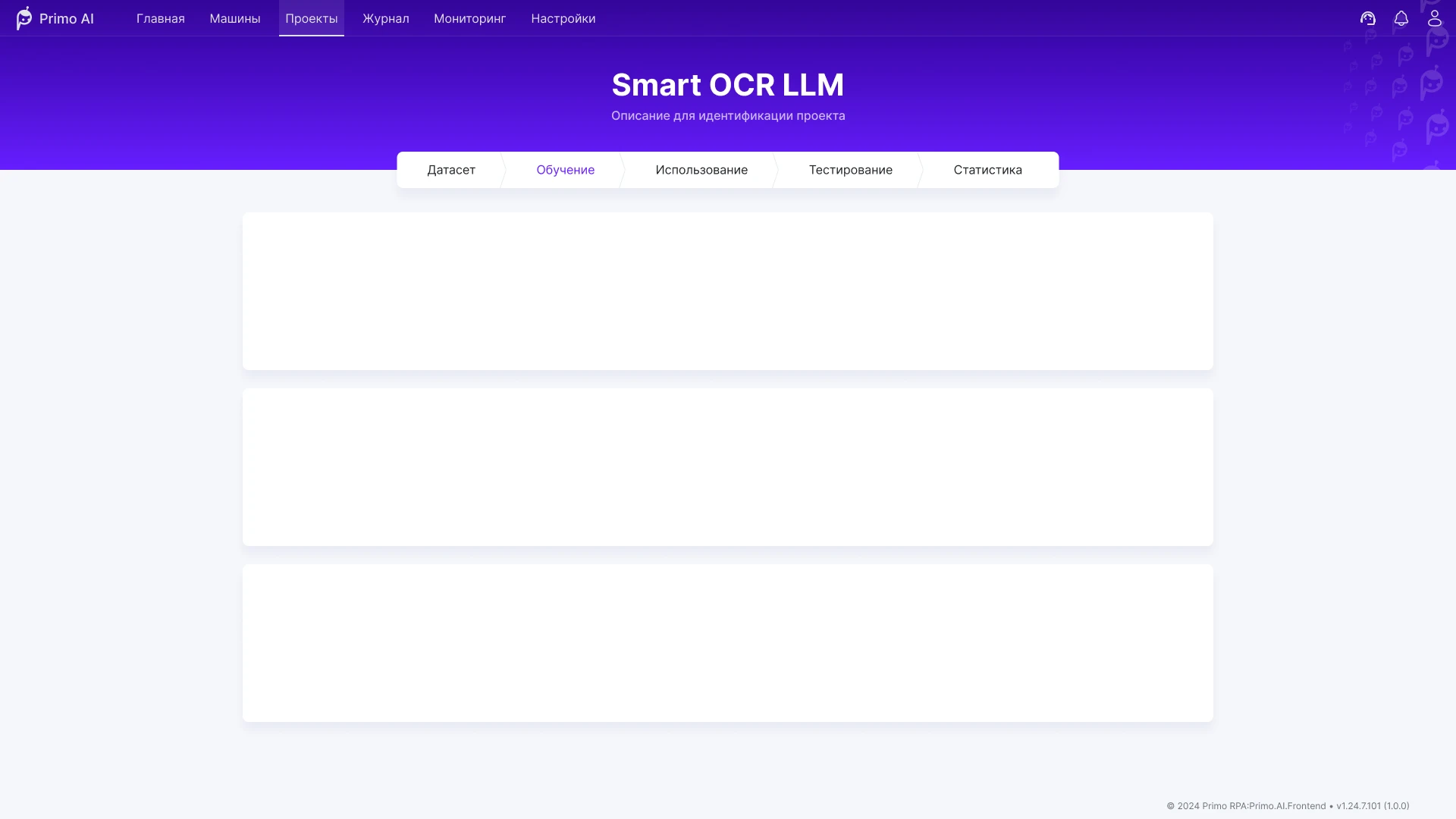
Web panel for automation orchestration
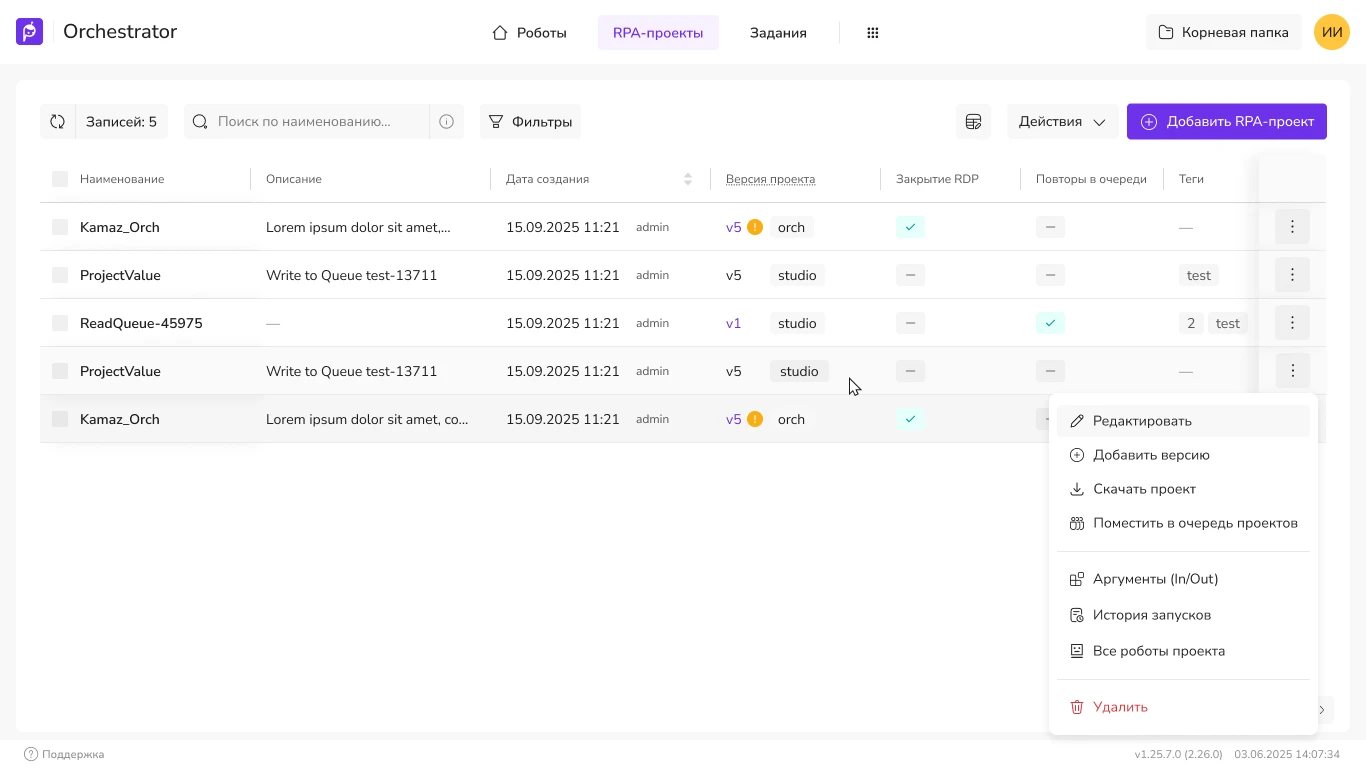
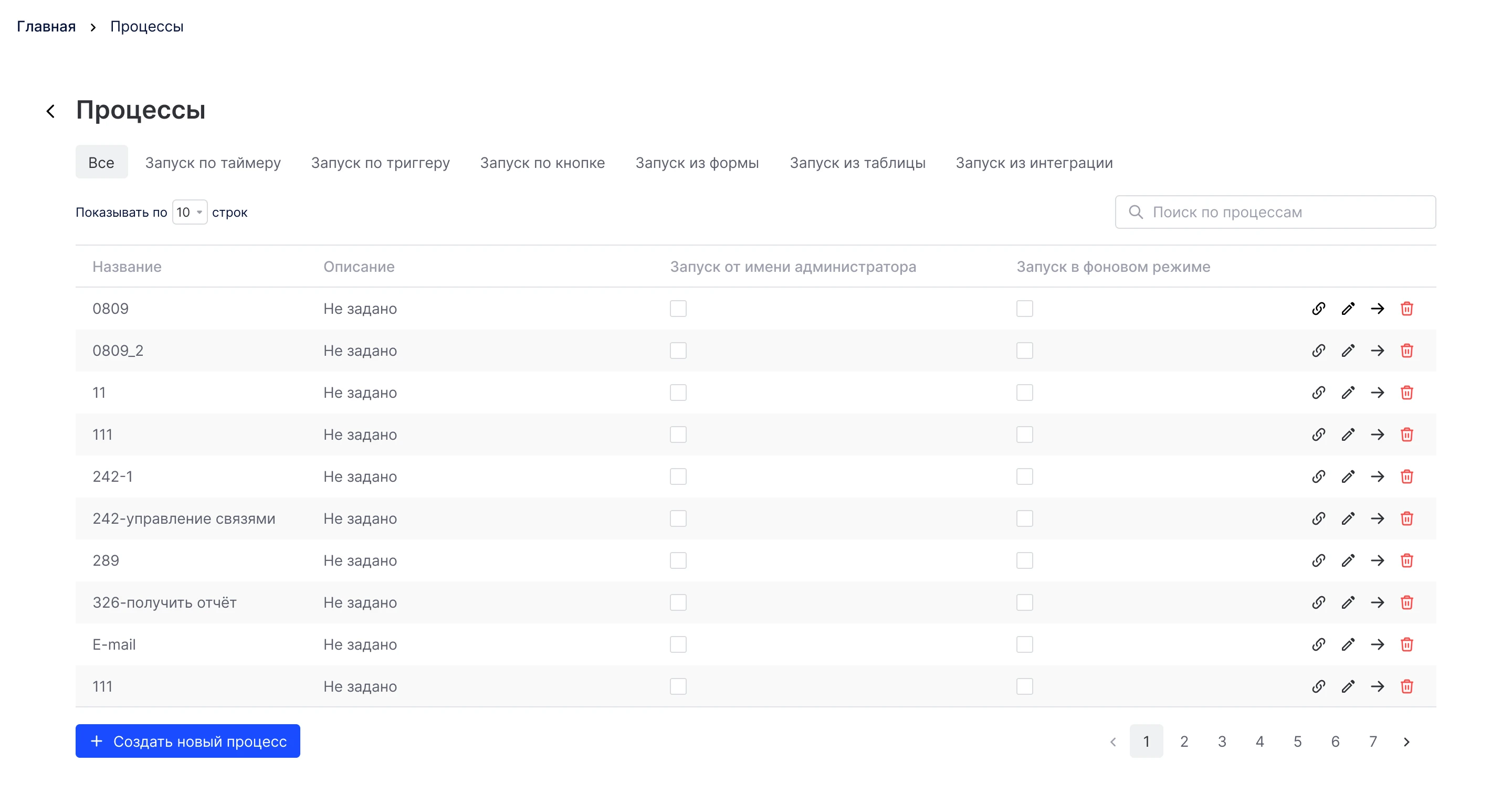
Primo RPA orchestrator web console: projects, launch and control of RPA bots. Redesign of key screens for production without halting releases.
Icons8 · desktop
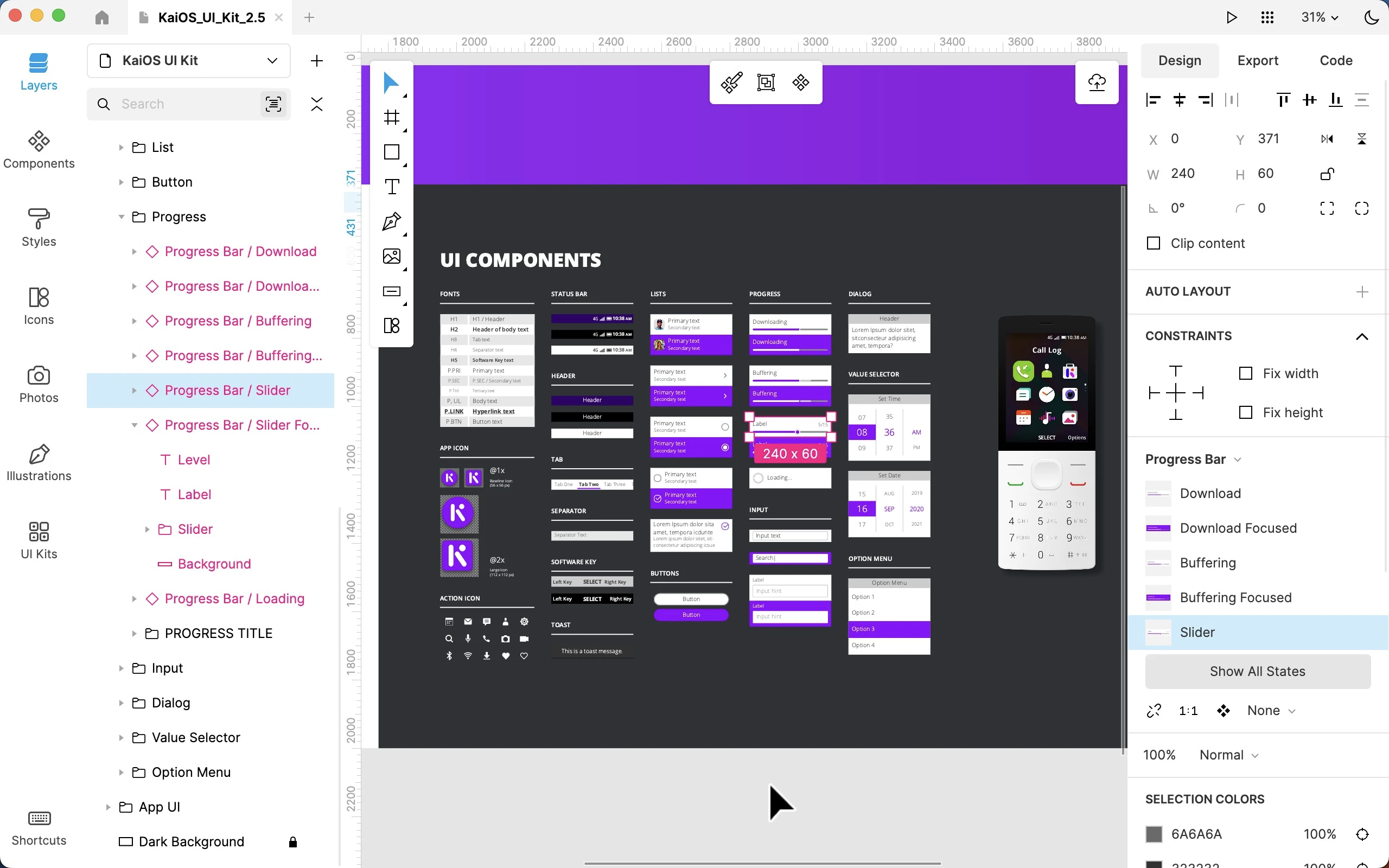
Work on the Lunacy interface as part of the Icons8 team: user flow, prototypes of complex scenarios, refinement of functionality and visual logic. Below are screenshots from the process (the order of the screenshots is based on the filenames).
Product: icons8.com/lunacy
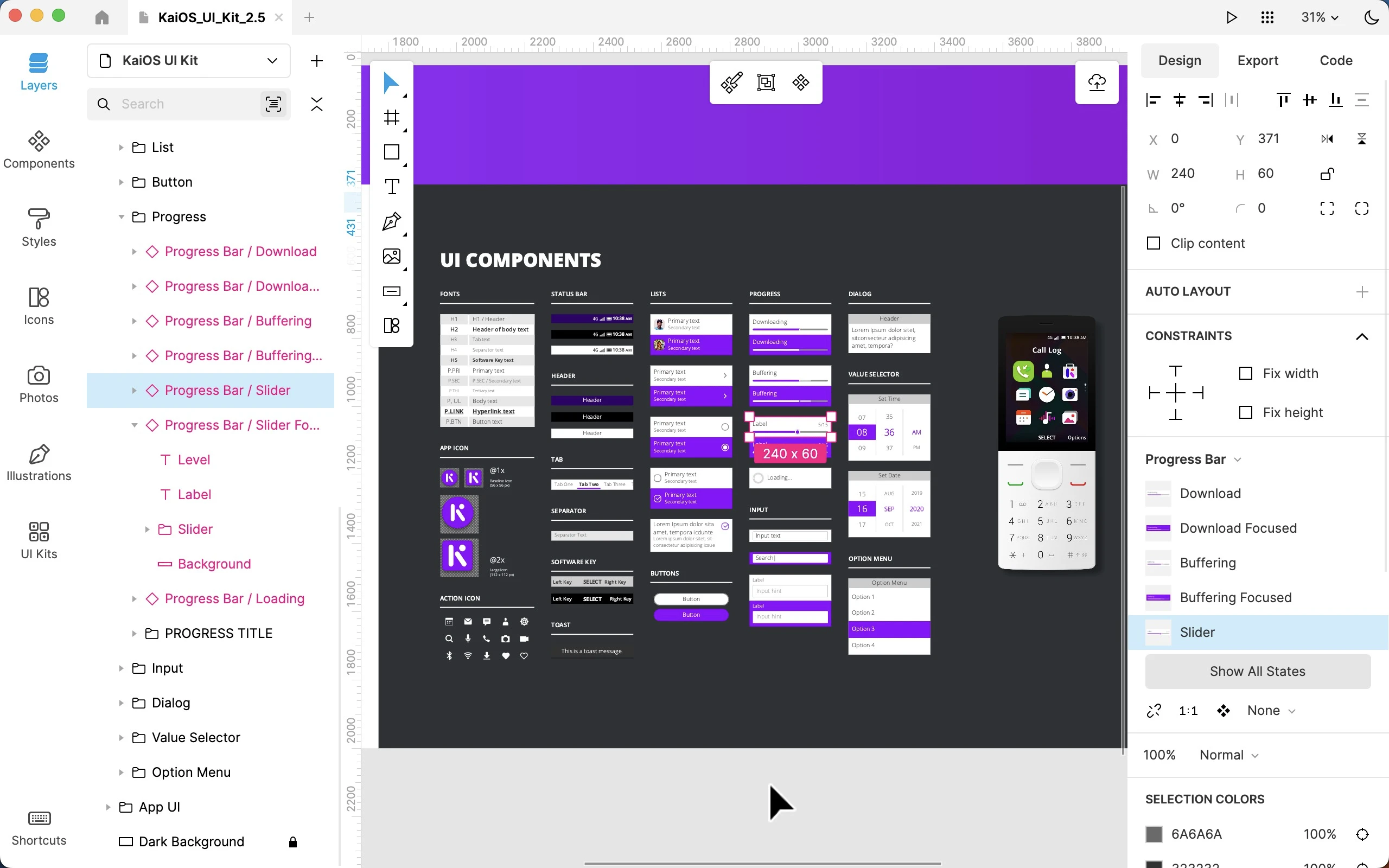
General view of the application—the workspace with an open document, toolbars, and the canvas. This screen demonstrates Lunacy’s basic layout: the left panel shows layers, the right panel shows object properties, and the top bar displays the context bar with the current tool. This serves as the starting point for the rest of the materials on the page.
Next are individual scenarios and interface iterations, presented in the order that makes the most sense in terms of context and file names.
Working with a blob in the context of the canvas is a separate scenario, prior to the analysis of the panel across versions.
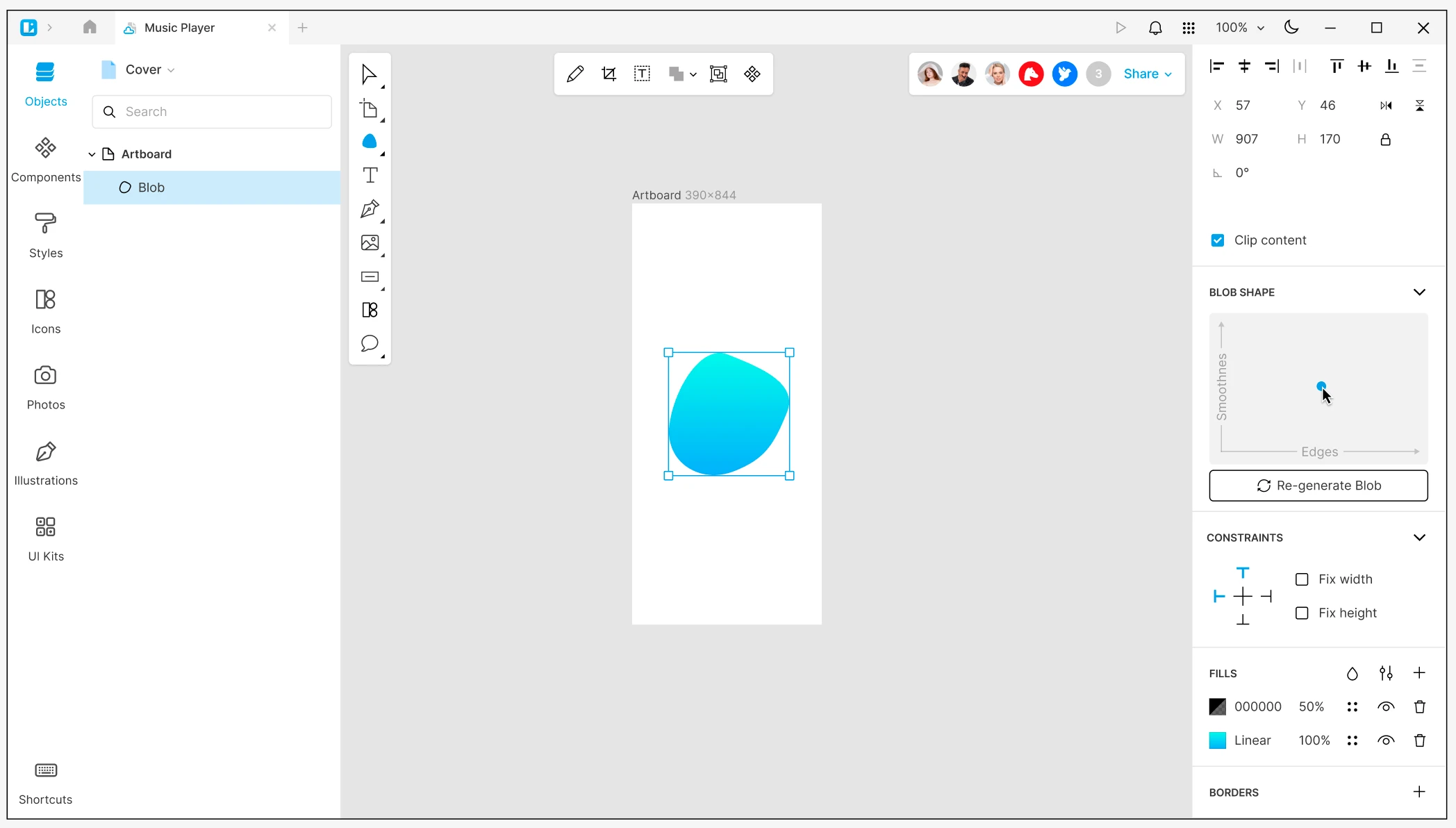
blob_settings_on_canvasThe settings panel for these tasks evolved through a series of mockups from v1 to v9—they’re compiled in the grid below.
Comparison of components and the update indicator in the panel.
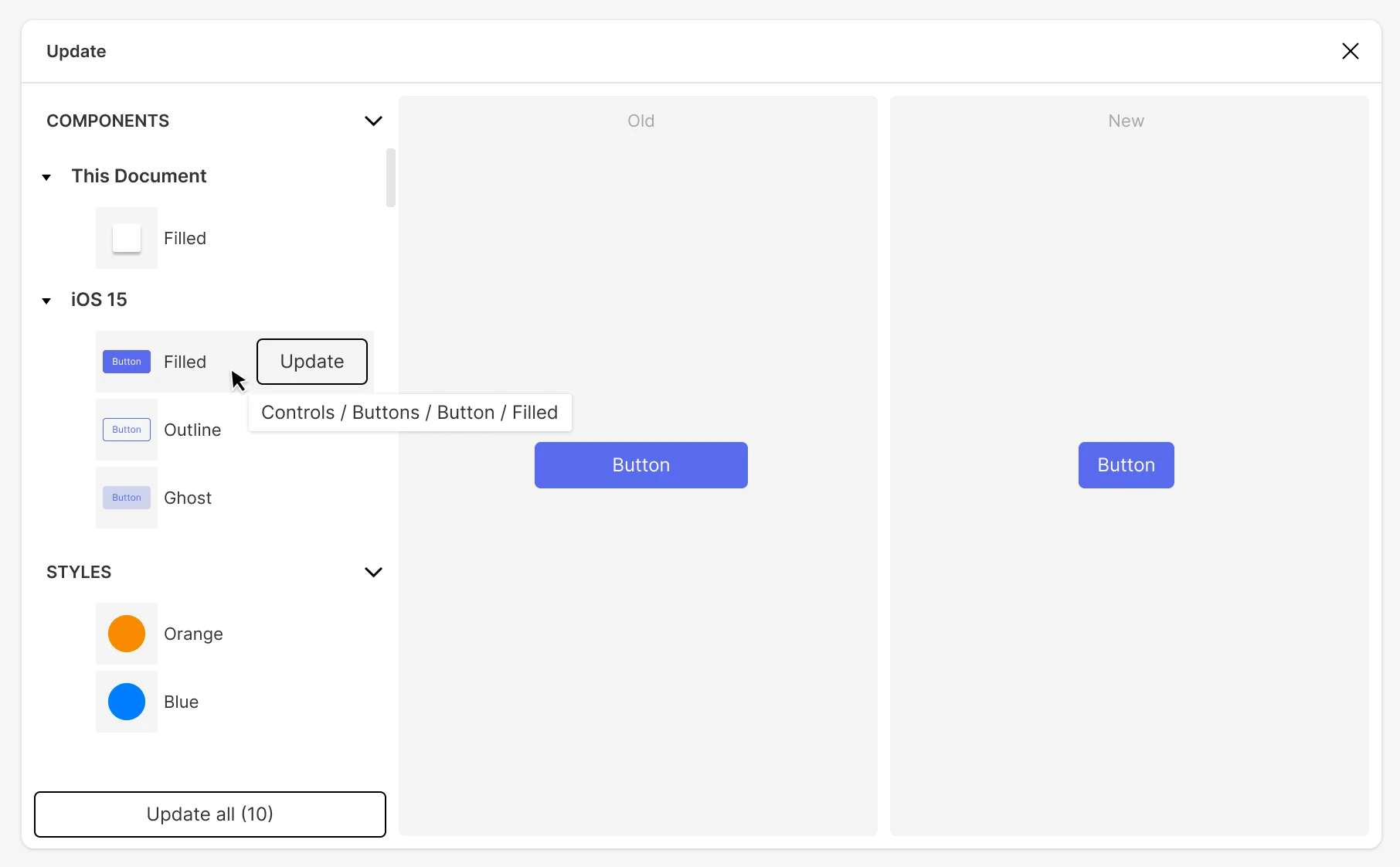
compare_components_modal_window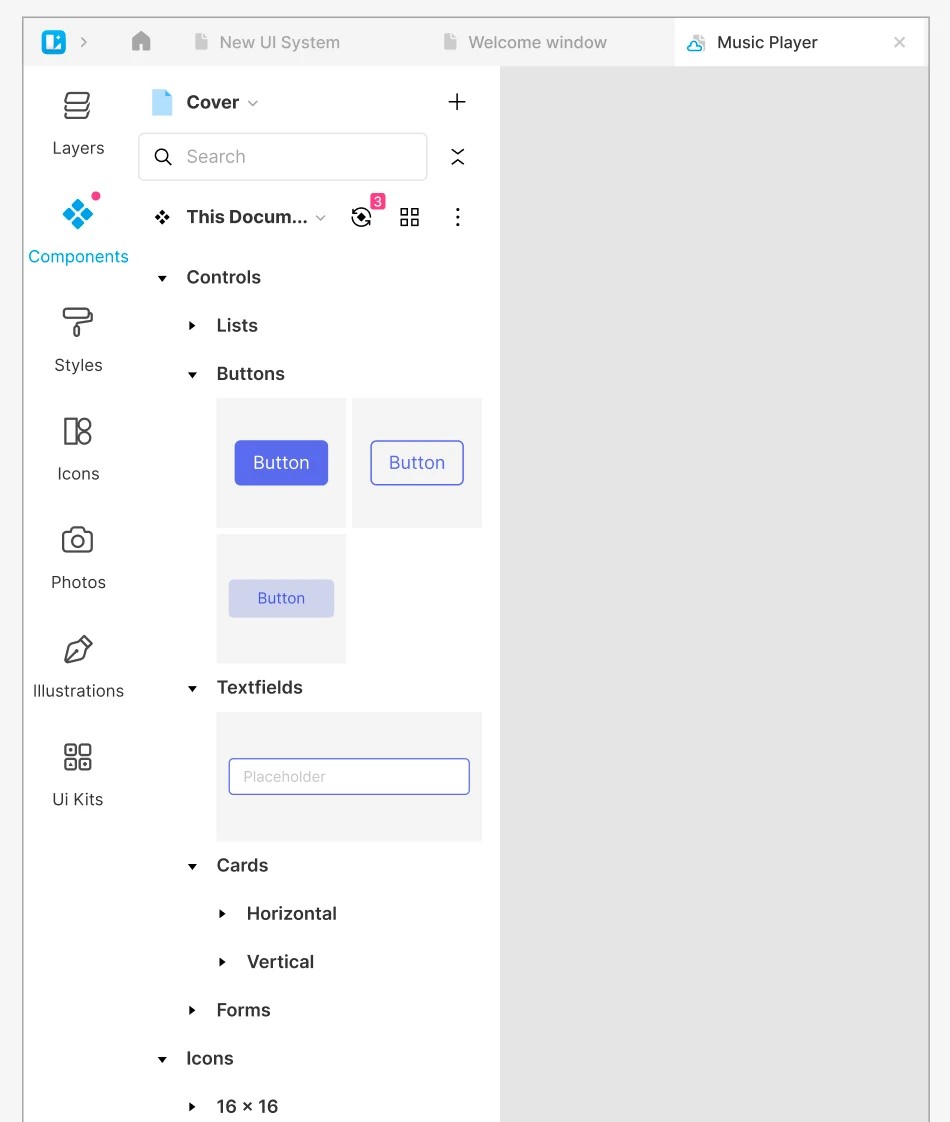
components_update_indicator_location_panelTwo related screens: searching for discrepancies and displaying update status next to the panel navigation.
Creating a prototype on the canvas and panel states for prototype mode.
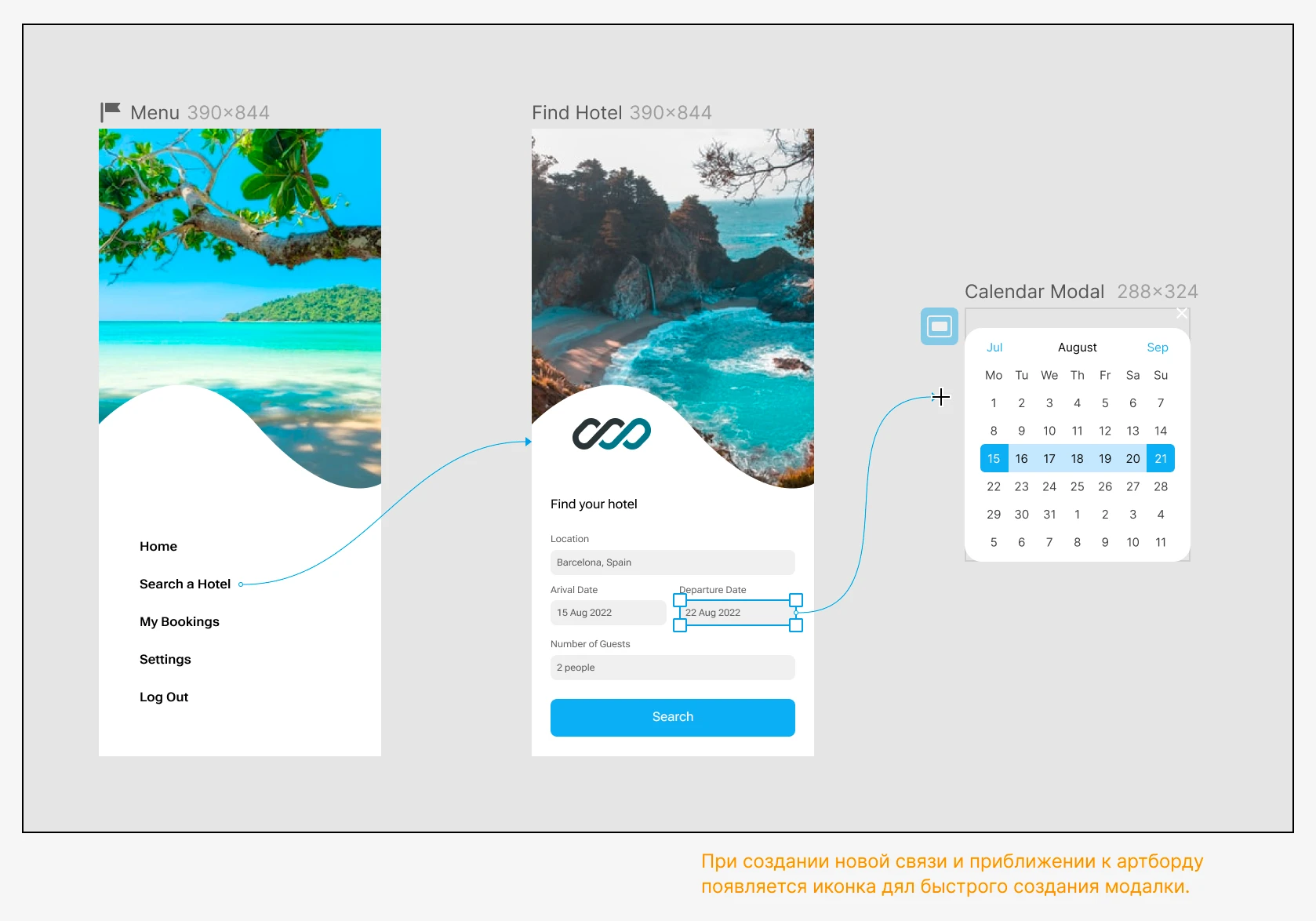
modal_window_for_prototype_create_on_canvas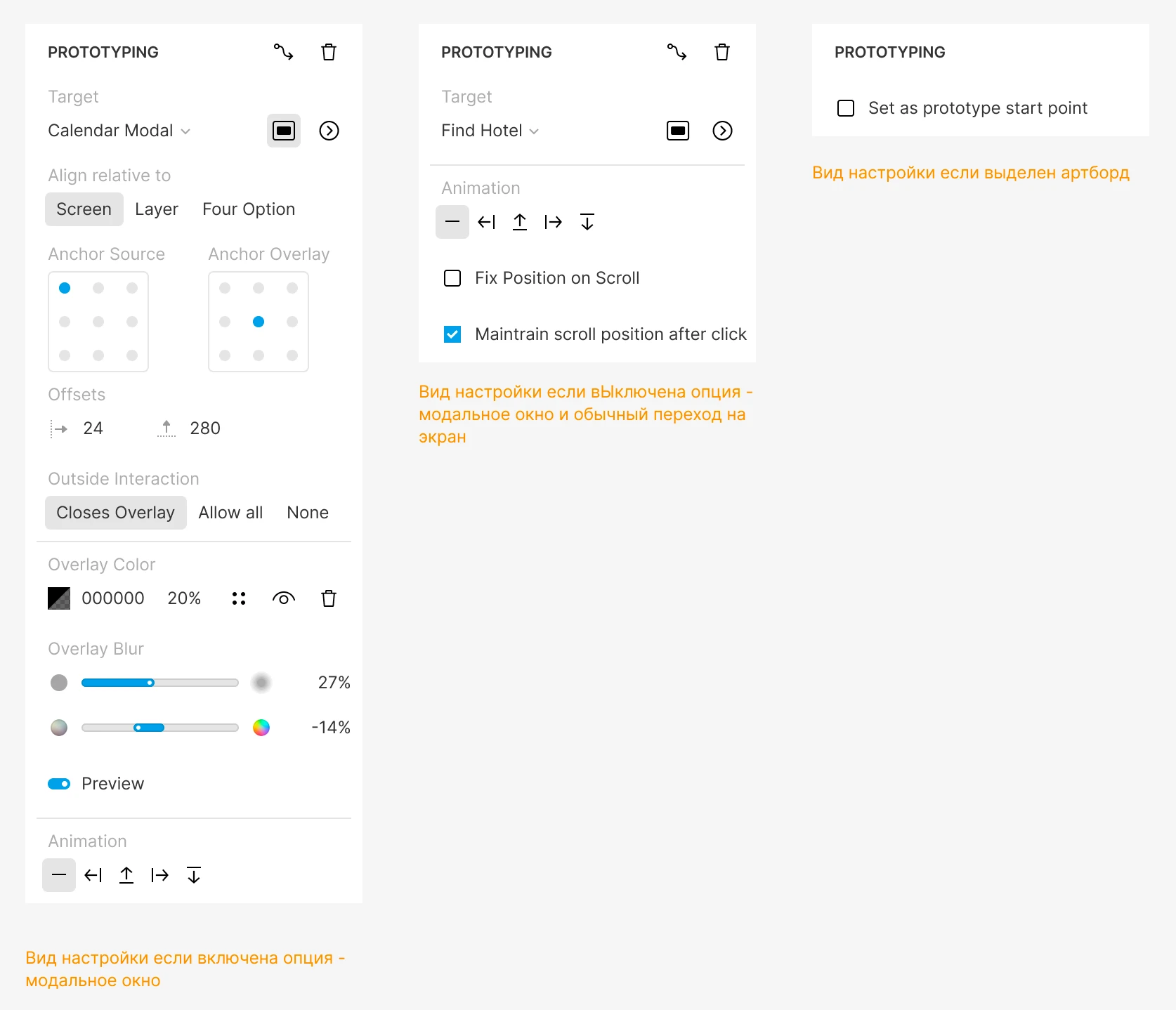
modal_window_for_prototype_panel_statesBoth screenshots show how the prototype is linked to the canvas and to a set of dashboard states.
Shadow Pro block: panel, ideas, modals with auto-open and auto-close.
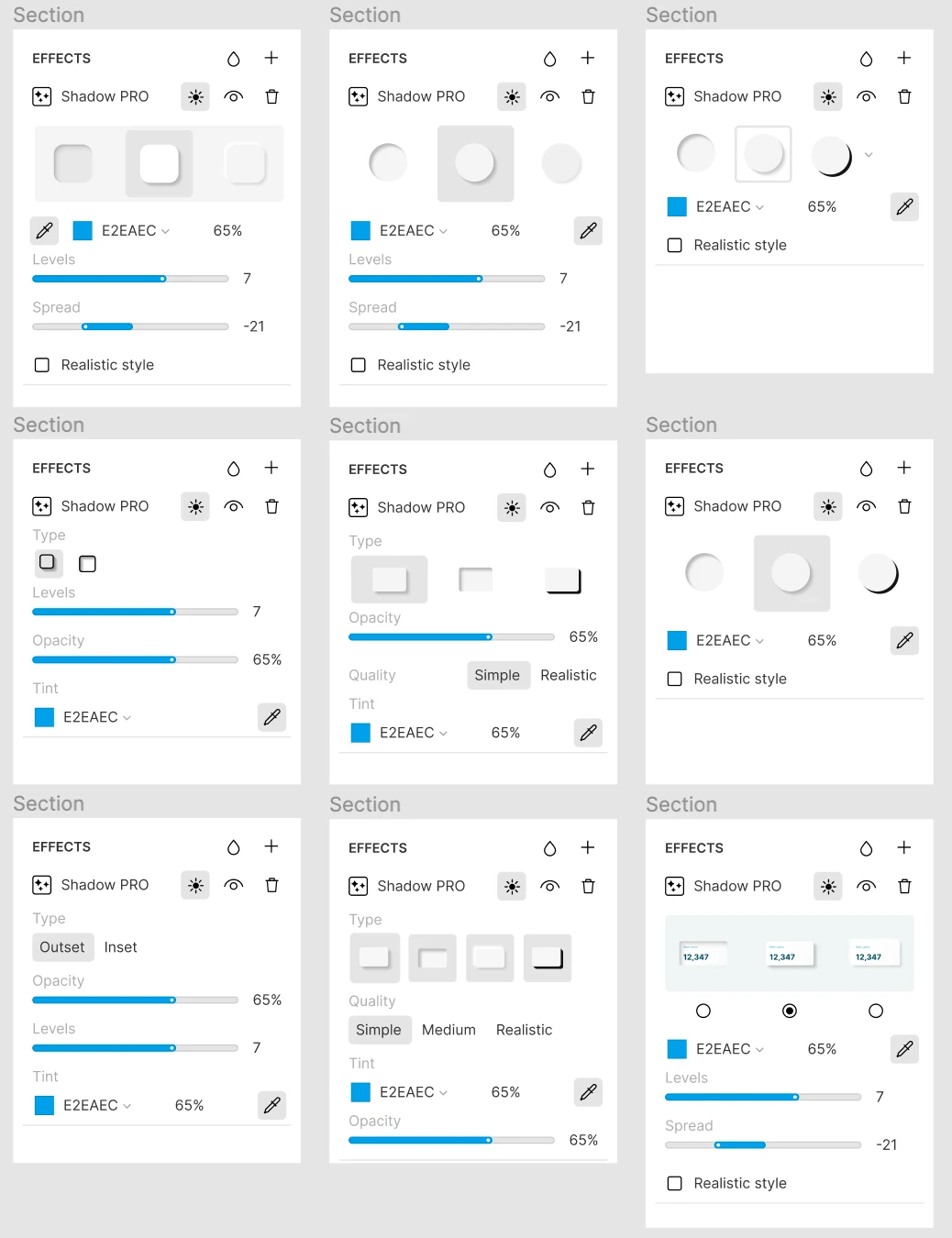
shadow_pro_settings_panel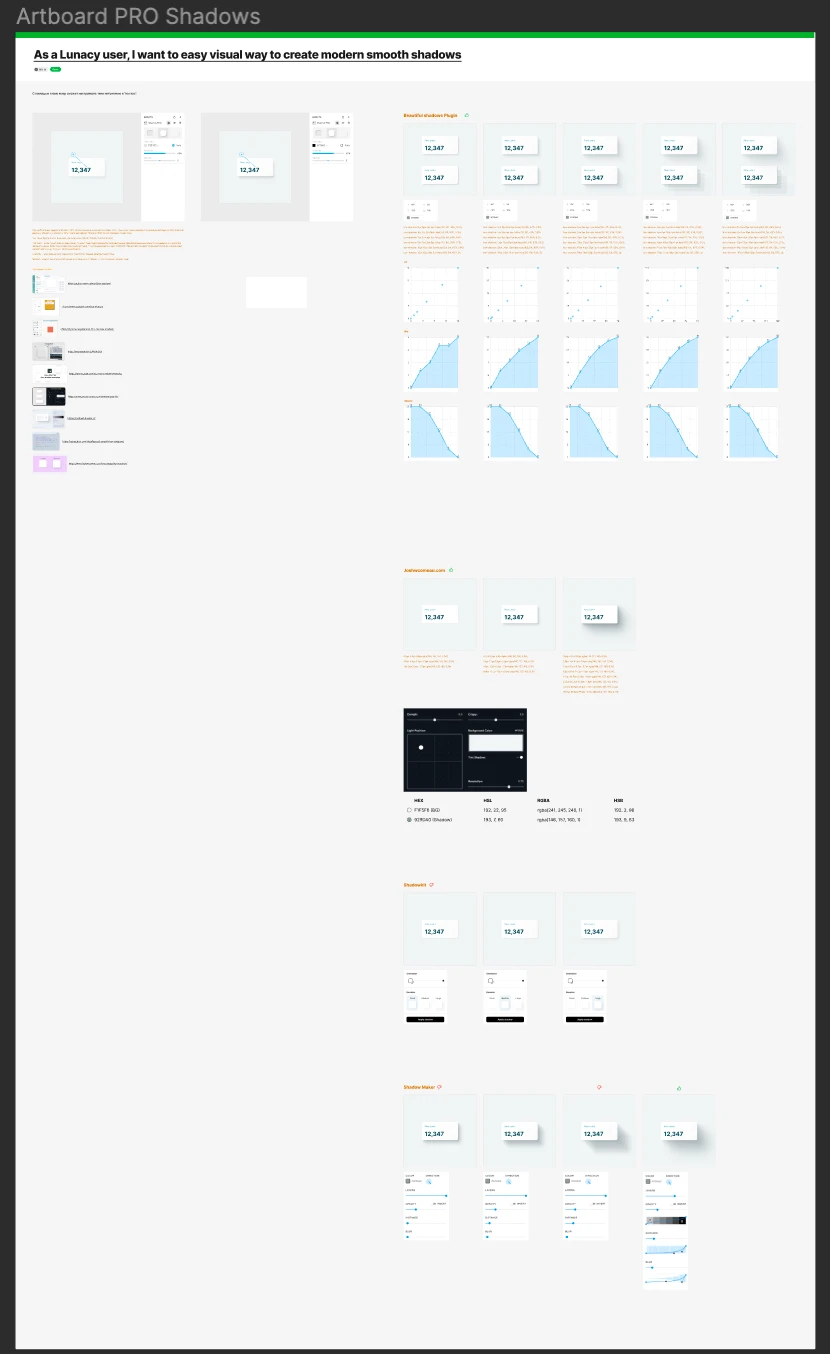
shadow_pro_settings_ideas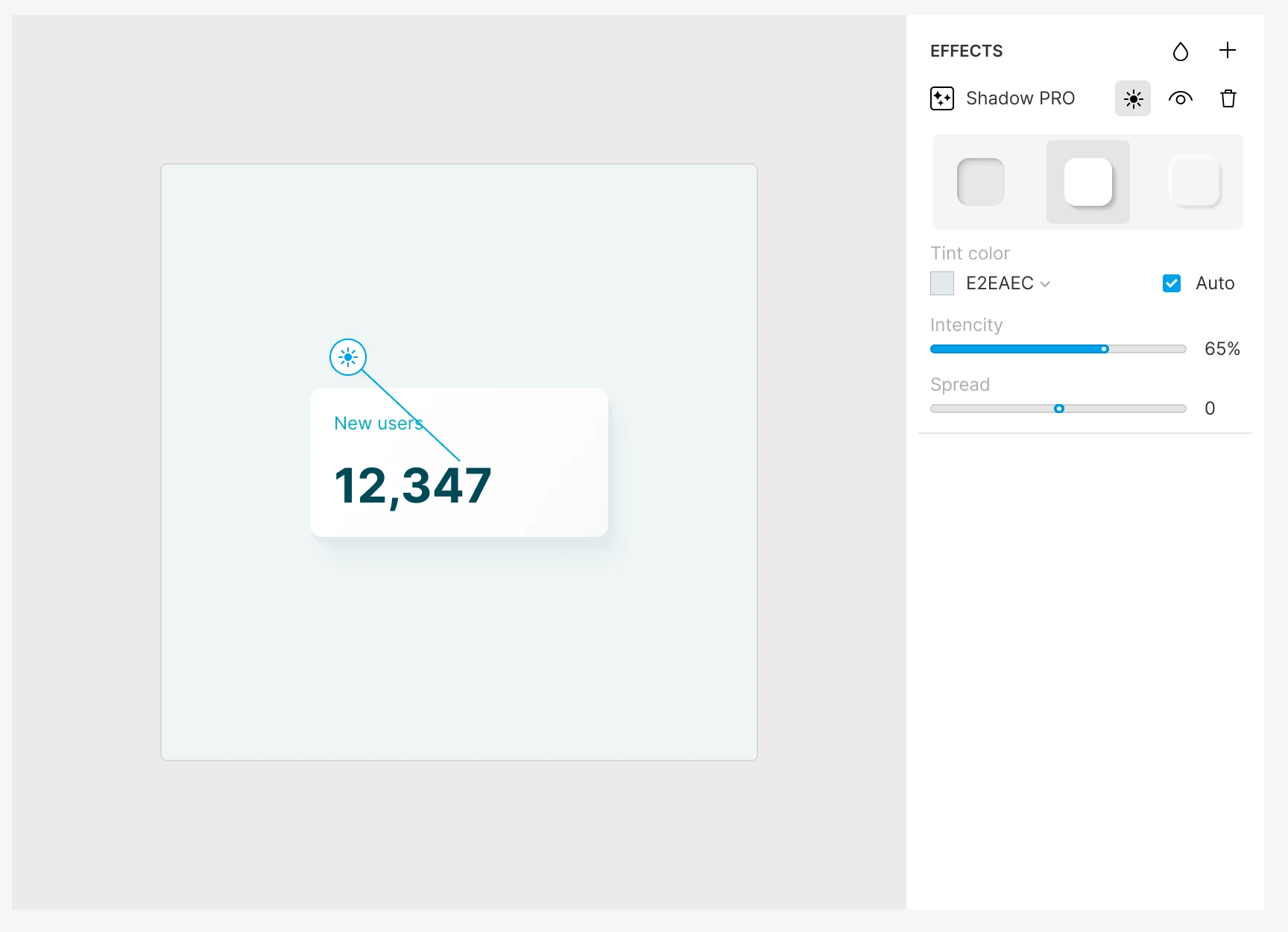
shadow_pro_settings_modal_auto_on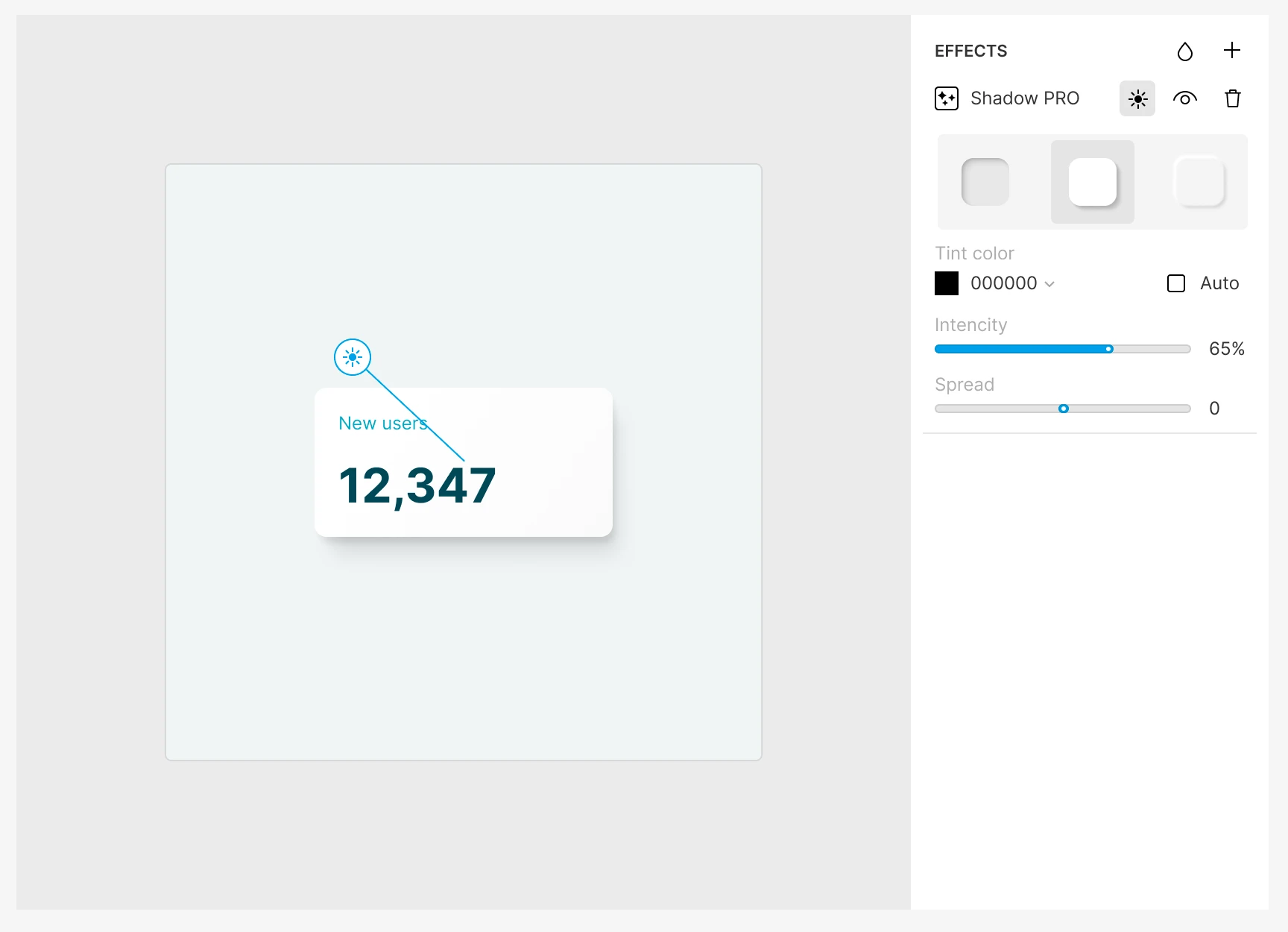
shadow_pro_settings_modal_auto-offFour consecutive frames show the development of a single subproject: from the panel and sketches to refining the behavior in modals.
Panel iterations by filename blob_settings_panel_v1 … v9. Grid based on text width, three columns on a
wide screen; as the window narrows, the number of columns decreases automatically.
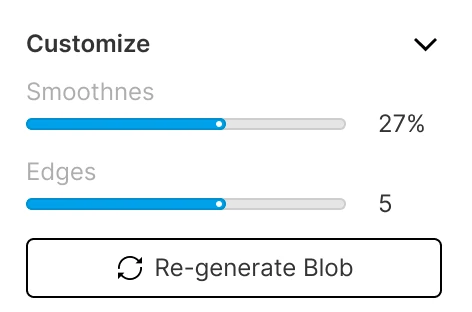
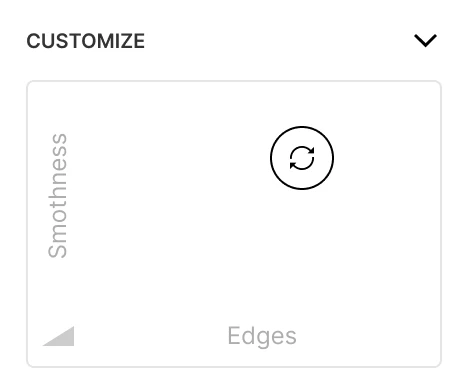
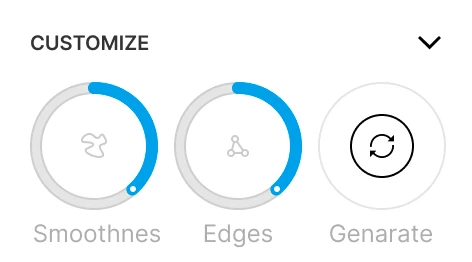
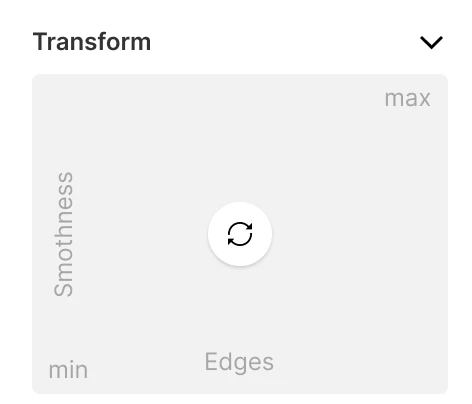
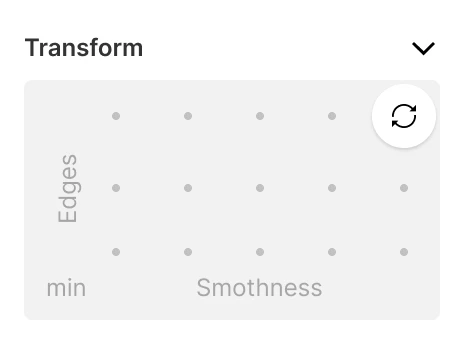
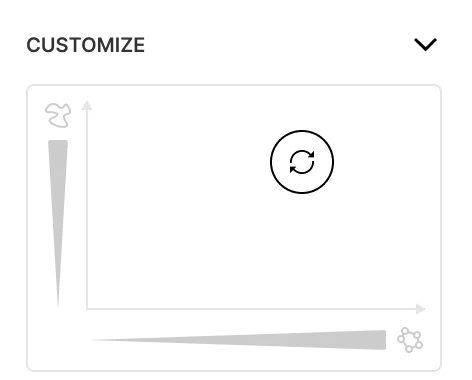
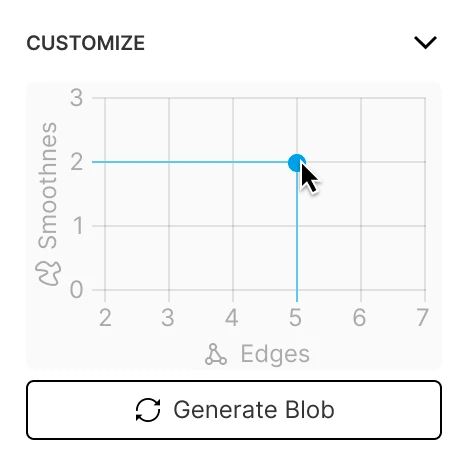
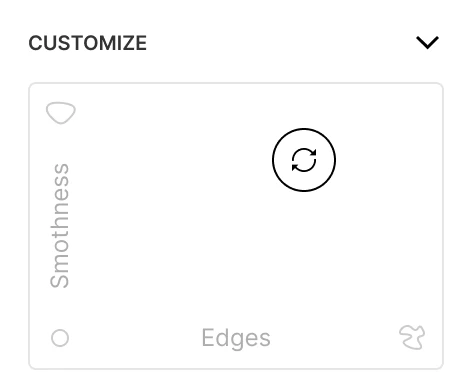
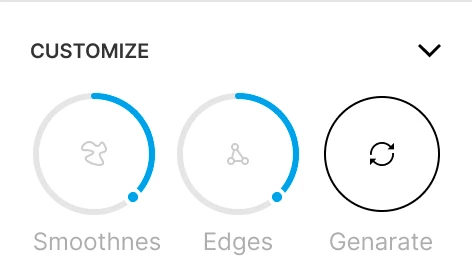
The grid is convenient for step-by-step comparisons; for details, clicking on a cell opens a full-screen view.
Ordered by name: slider_v1 … slider_v13, then slider_14 (in the asset without a suffix v),
then slider_v15 … slider_v18.
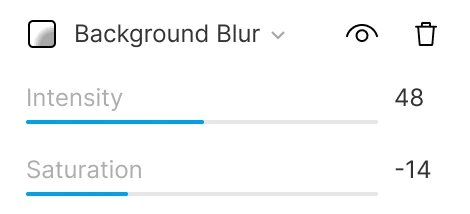
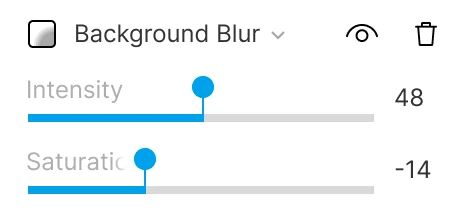
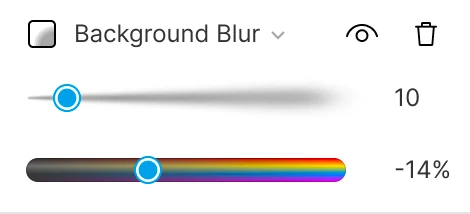
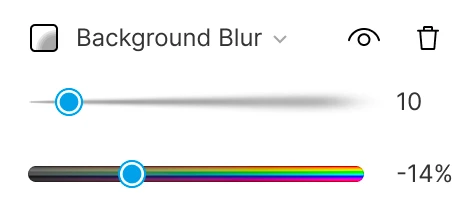
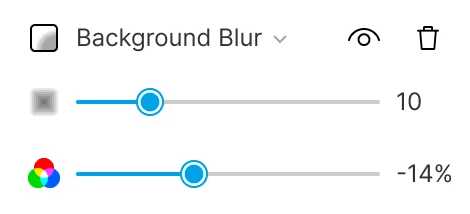
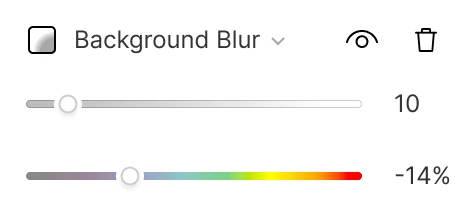
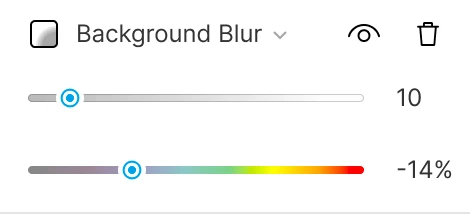
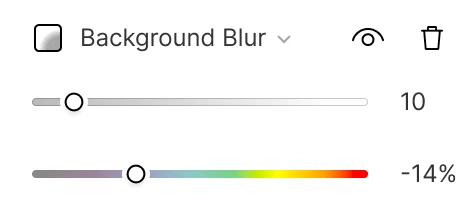
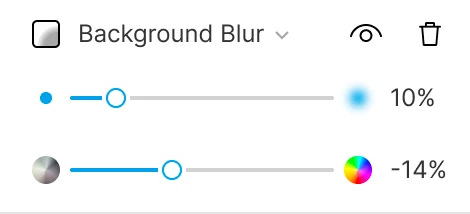
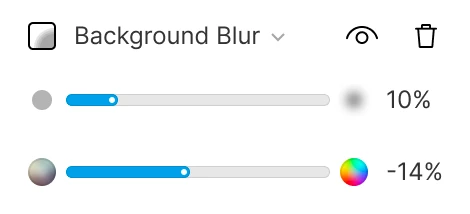
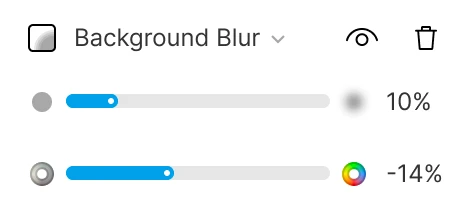
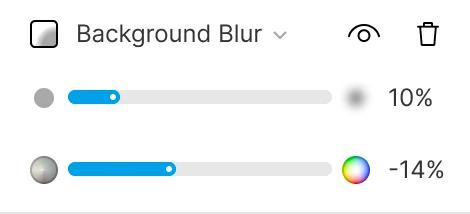
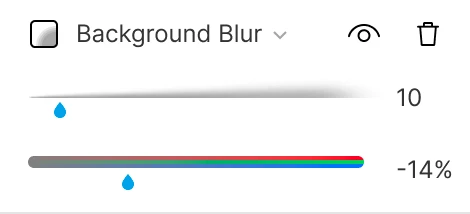
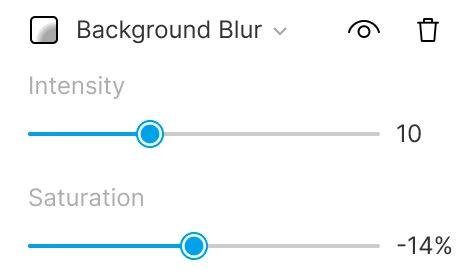
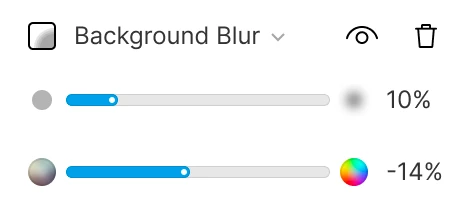
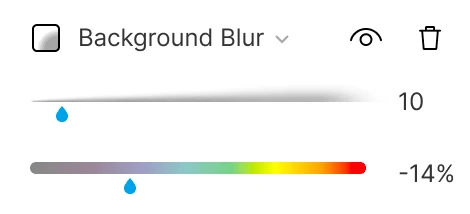
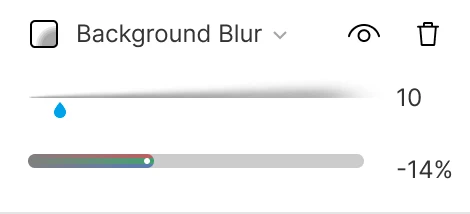
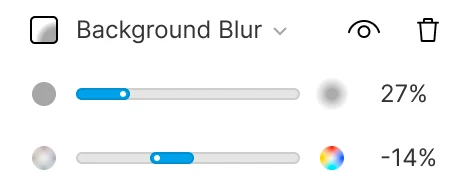
slider_14 between v13 and v15.This sequence is useful for analyzing the evolution of the control: from early layouts to final states.
A summary screen for sliders—following the version series.
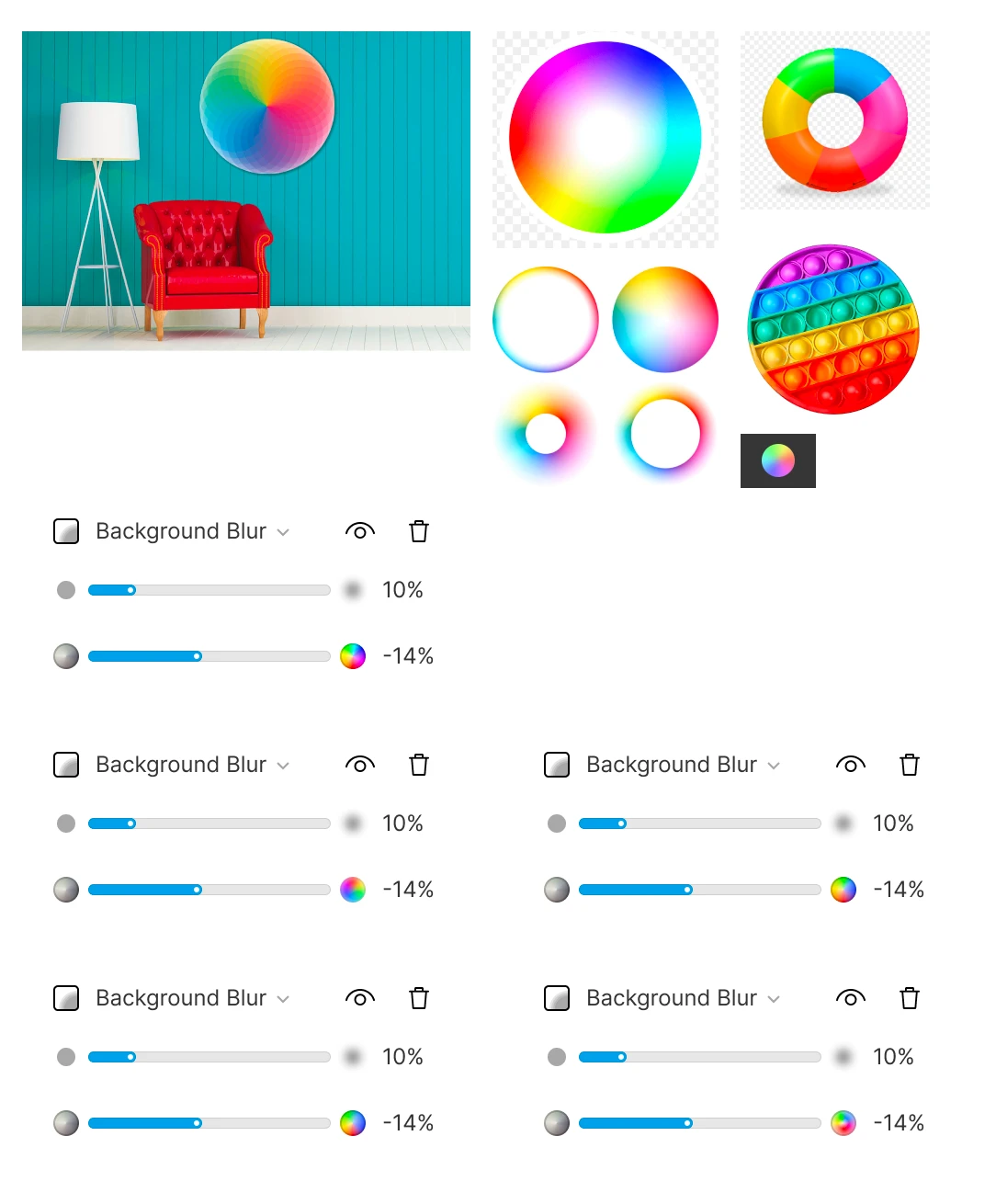
sliders_all_setThis concludes the section on sliders: context—how multiple controls coexist on a single screen.
An interface for training and using AI models in business processes: working with data, automation scenarios, and Smart OCR.
Worked on the Lunacy interface as part of the Icons8 team: user flow, complex prototypes, and improvements to functionality and interface logic.
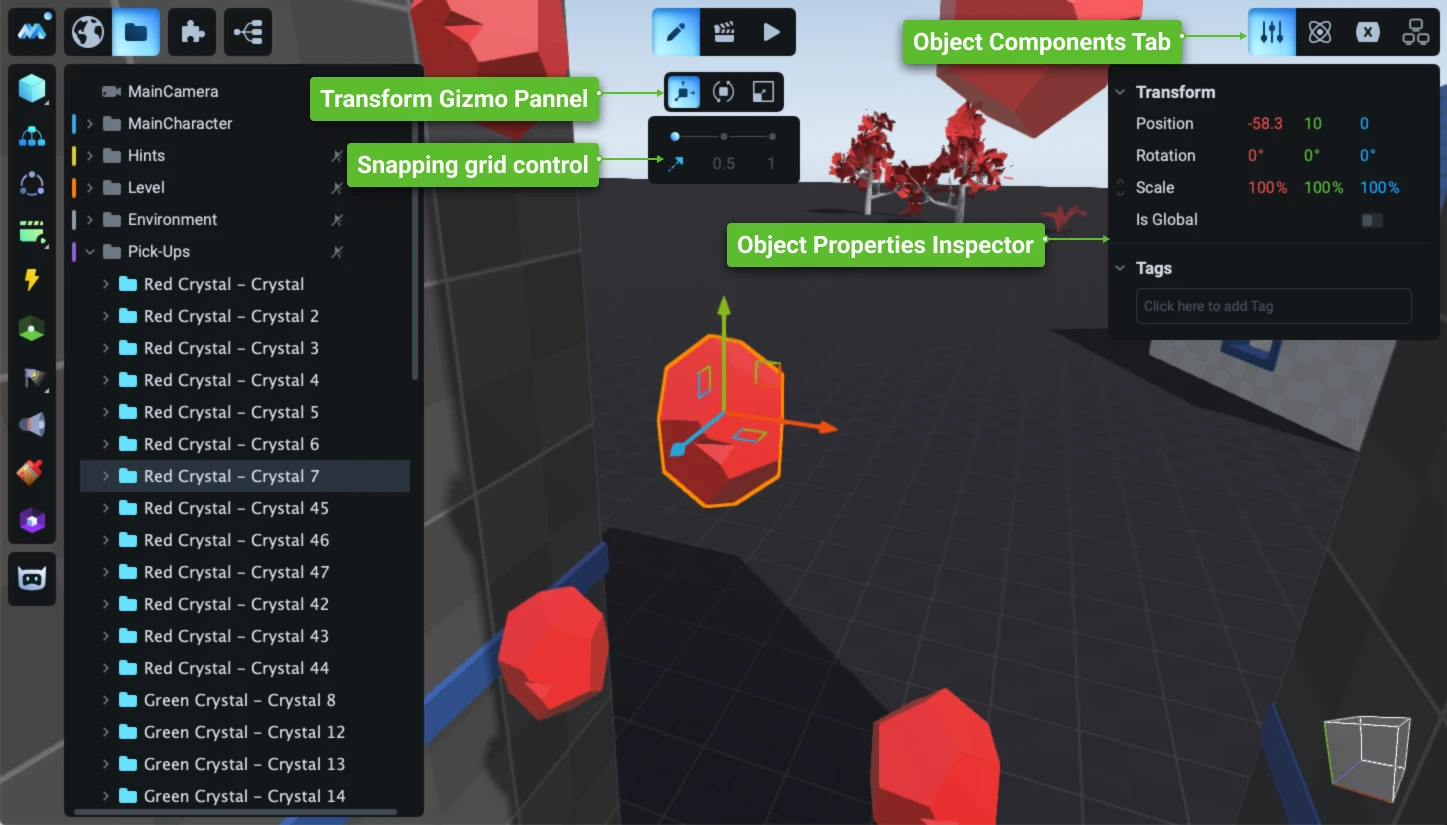
Redesign and development of the game engine’s user interface: a new operational concept, an updated visual system, and the development of hundreds of complex user scenarios.
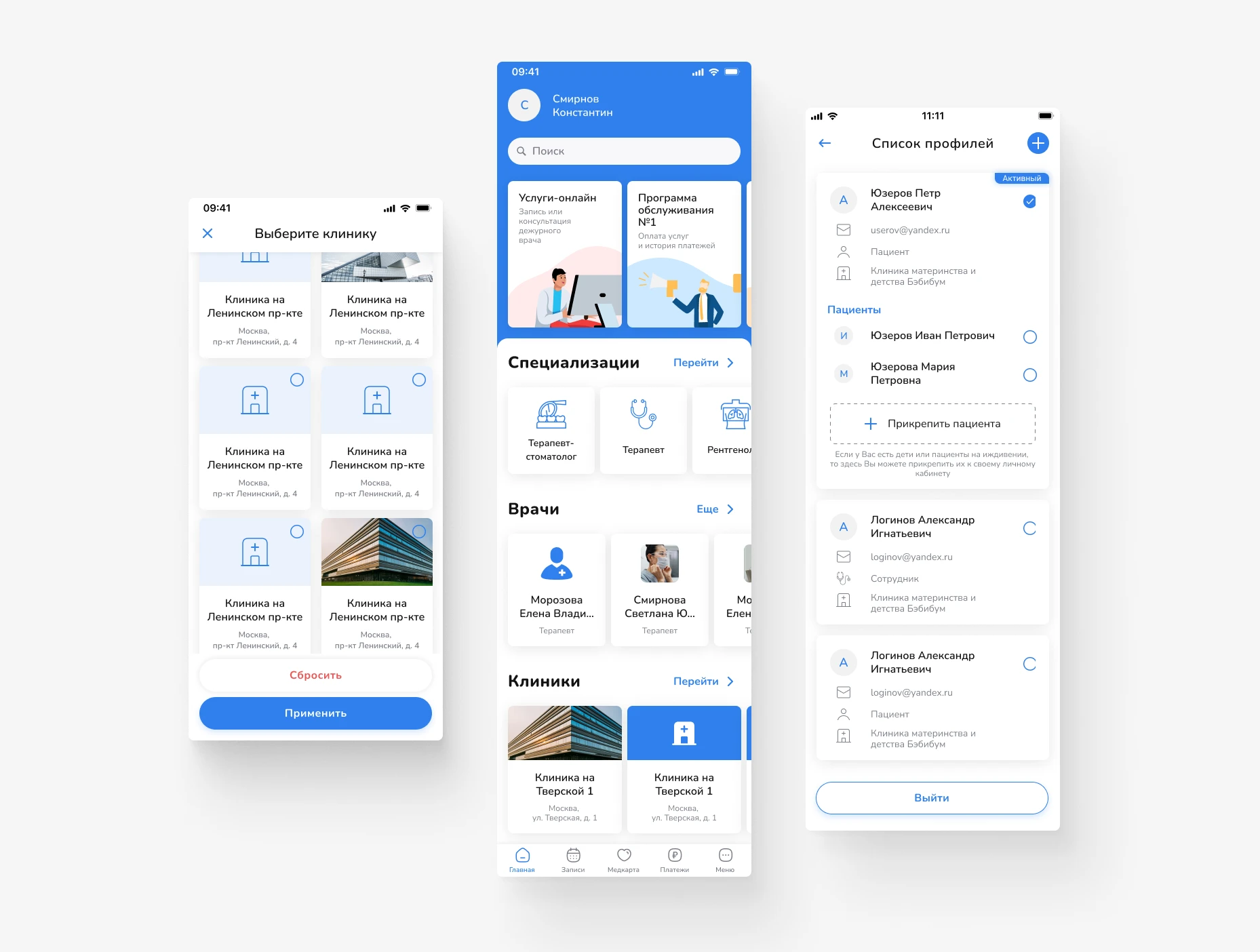
Design of a mobile app for scheduling doctor appointments and managing medical services. Focus on a simple user journey, intuitive navigation, and quick access to necessary actions.
Primo RPA orchestrator’s web dashboard: projects, deployment, and monitoring of RPA robots. Redesign of key screens for production without interrupting releases.
Product concept for a service to create, assign, and track tasks, with an emphasis on process transparency and seamless teamwork.
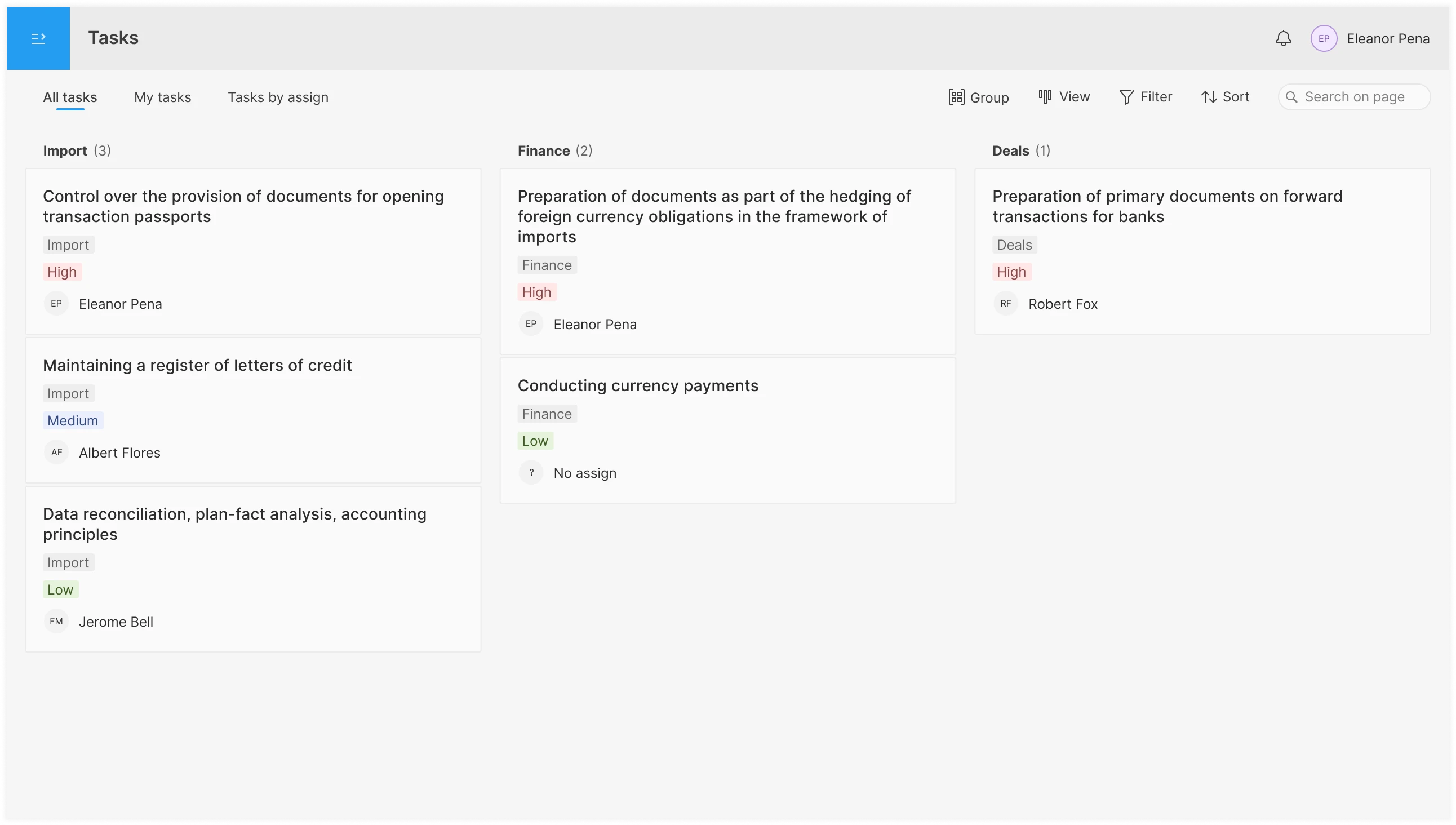
An interface for planning and assigning tasks in the operations department: shared pool, personal to-do list, overview by assignee; tabs, filters, board/list/table views, and drag-and-drop functionality.


